

Game hangs after I run the shortcut
Check the following:
- Your system meets the requirements of the game. Go to http://www.3000ad.com and check the system requirements for your game.
- You have installed DirectX 9.0c (August Edition) or higher runtime
- You have installed the latest DirectX 9.0c or higher compatible sound and video drivers
- You have installed the latest drivers for your motherboard
- Your video card meets the requirements for the game (e.g. does your card support pixel and vertex shader 2.0?)
Game hangs during the intro movie playback
If your system does not have the required codec for playing the intro movie, it will either crash or display a corrupt screen during playback.
This may also be a video card graphics driver glitch which should clear up after the first few frames of the AVI are played.
If an error is displayed, just click OK and the game may continue as normal.
The game requires Indeo 5.10 or higher codec. If the logo does not play, install the latest version of Windows Media Player on your system. Also read this if you are running Windows XP (pre-SP2)
You can also disable the intro animation by editing the properties of game shortcut and adding the /n parameter.
e.g.
"C:\Program Files\3000AD\Universal Combat Collectors Edition\ucce.exe" /n
Game crash with pixel or vertex shader error
If you get this error, it means that your video card does not support the pixel and vertex shader versions required by the game.
Most of our games require video cards which support Pixel & Vertex Shader 2.0 or higher. More info on how to determine which version your card supports.
Game Config Reset
The game's UCCONFIG.INI file is used to store many game options such as resolution, controllers etc. If this file is missing, the game will create a new one with default values.
If you feel that you have config related issues (e.g. unexplained crashes, glitches after changing game options), then you can try deleting this file so a new one can be created by the game.
- Quit to Windows
- Locate (see valid locations below) and delete the UCCONFIG.INI file
- Restart the game
Depending on your game version and installation (x86, x64) the game's config file can be located in one of the following locations.
e.g.
Standard Version:
C:\Program Files (x86)\3000AD\Universal Combat\
C:\Program Files (x86)\3000AD\Universal Combat CE\
C:\Program Files (x86)\3000AD\UniversalCombatCE20\
C:\Program Files (x86)\3000AD\Universal Combat Collectors Edition v2\
Steam Version:
C:\Program Files (x86)\SteamLibrary\SteamApps\common\Universal Combat CE\
C:\Program Files\SteamLibrary\SteamApps\common\Universal Combat CE\
Graphics Issues
Ensure that you are running the latest drivers for your video card. Most of our games require support for pixel & vertex shader 2.0 or higher. More info.
You may need the legacy DirectX 9 June 2010 Runtime - even if you are running Windows 10.
If the main menu screen becomes corrupted or you find that you cannot input characters in the New Game screen, this is due to a conflict in some graphics settings between the game and your graphics card tools
Try the following:
- Quit to Windows
- Locate and delete the game's INI configuration file from the install folder. See KB7 and KB78
- Restart the game. A new INI file will be created
- Make your selections, but leave anti-aliasing and texture filtering at the defaults
- Quit to Windows, and restart the game
If the above still doesn't work. Then in your graphic card's tool, try these settings. You can also create game specific profiles if your graphics card tool supports that.
- Anti-Aliasing Mode to "Override Application Settings", then choose any options there
- Anisotropic Filtering Mode to "Override Application Settings", then choose any options there
Reboot your computer for the above to take global effect.
Display resolution support
All our games prior to Universal Combat Collectors' Edition, do not support widescreen resolutions (e.g. 1280x720, 1920x1080, 1680x1050 etc) natively.
If you have a monitor with a resolution (e.g. 1680x1050) that the game does not display in CONFIG, you can force this resolution by doing the following UNSUPPORTED steps.
USE AT YOUR OWN RISK. 3000AD, INC IS NOT RESPONSIBLE FOR ANY ADVERSE EFFECTS OR MISHAPS WHICH MAY RESULT FROM THIS MODIFICATION
- If the game is running, quit and return to the desktop
- Using Notepad or similar text editor, and depending on the title, load the BCCONFIG.INI, GAME_CONFIG.INI or UCCONFIG.INI file located in the game install folder.
- Search for the line that looks something like "Resolution=800x600" and change the resolution to the one you want e.g. Resolution=1280x720
- Save the file and exit.
- Restart the game. If your video card has sufficient memory to run at that resolution, the game will work fine. If not, the display will be incorrect. In which case, quit and go back and set the resolution to one that works.
NOTE:
1) The higher the resolution you set, the slower the game will run
2) If you want to reset the resolution back to the default, delete the .INI file you modified and restart the game. A new one with defaults will be created at startup.
Problem hearing 3D audio sounds
The game sound engine is fully 3D positional. For this reason, you won't hear sounds that are played if you are more than 75km from the sound source. e.g a ship exploding.
Also, make sure that your speaker configuration is correct. e.g. if you have a 4-speaker setup, make sure that you have the settings for your sound card are configured properly in control panel. If you
have powered Dolby 5.1 (or 6,1, 7.1) speaker setup, make sure you have them configured correctly as well.
If you are still having problems with hardware audio, you can force use of the software audio by add /x to the game's shortcut.
e.g.
"C:\Program Files\3000AD\Universal Combat Collectors Edition\ucce.exe" /x
How to play own MP3 or OGG music files
Copy them to the SOUNDFX\MUSIC folder where the game is installed and they will be added to the playlist.
You can then use the ALT+. and ALT+, commands to cycle the next / previous song in the playlist. The files can be in either MP3 or Ogg format.
How to remap game controls
Remapping of the game's default controls, other than what is already exposed in CONFIG, is not supported.
Networking ports required for firewall exception rules
The client and server use standard UDP ports 2302-2304. If your server is behind a firewall or NAT, then you have to configure your firewall (or router) settings and forward those ports to the computer running the server. You do not need a designated DMZ machine for a server. You can also add the game's multiplayer executable (e.g. UCMP.EXE, UCSEMP.EXE, UCCEMP.EXE etc) to the firewall's exceptions list.
 2302-2304 (UDP/TCP)
 2425-2427 (UDP/TCP)
 27243-27245 (UDP/TCP)
 27900-27900 (UDP)
Which patch version can I use?
Our games are released through various mediums, including digital distribution outlets such as Digital River, Direct2Drive etc. All these services use different DRM schemes which are also incorporated in patches.
For this reason, you cannot use a Digital River patch on a game purchased through Direct2Drive. You have to use the patches provided by each distributor.
Running the game's Updater (if supported) will take you to the correct patch location.
Patches available for download on other sites are usually the default versions also used by the game's Updater. So if our patch server is down (and the Updater cannot download a patch), you can download a patch from any of these servers.
If you use the wrong patch on your product, you will have authentication problems. You will then have no choice but to uninstall the game, re-install and patch to the current version using the proper patch file.
Crash when game loses window focus
You should not have any non-essential background programs running while playing this game. This includes email programs with pop-up notifiers, IM programs, Skype etc. If you have these programs running while playing the game and they create a pop-up event, it will interrupt the game and cause it to lose window focus. This will cause the game to either crash or become unresponsive.
The same applies to the use of ALT+TAB switching. The game requires real-time processing and you should not switch away from it while playing.
If you have to switch away, go to the COMMAND menu and use the options there to save your game and exit.
You can also immediately exit by using ALT+Q to exit to the main menu, then quit the game as normal from there.
Multiplayer server refuses to run
The multiplayer server for all games prior to Universal Combat Collector's Edition will not run under Windows Server 2003 (or any OS not supported by the game) or on hardware configuration with an on-board* graphics chip that does not support pixel and vertex shader v1.1 or higher.
Universal Combat Collectors' Edition console and graphics servers will run on Windows Server 2003 R2, with or without vertex shader v1.1 on the on-board graphics chip.
For more multiplayer client/server issues, please refer to the FAQ for the game. All supported game FAQs are located at http://www.3000ad.com/site/online_help/
* Most server boards have on-board graphics chips made by Intel. Most if not ALL of those chips, even if they have support for shaders, are woefully inadequate for playing and/or hosting video games.
Multiplayer server configuration & hosting
You can run a client and server on the same machine (i.e. non-dedicated server) as long as that machine meets with the multiplayer requirements mentioned in the game's FAQ.
- If running a non-dedicated server, you need to run the console server - not - the graphics server.
- If running a non-dedicated server and you want to improve performance, you need to use a UCCONFIG.INI file (created when you first run the game) which has lower setings for the server. However, this will apply to both the client and the server. Below* you will find links to this file for each of the game versions.
- If you want to run a different UCCONFIG.INI for the client and server on an mp server, you need to clone your game install folder and use the cloned copy for the server. You would need to manually create the console server shortcut as well. You can do this by just making a copy (and renaming it) of the default version created by the install program, then changing the path in the shortcut to reflect the cloned folder path.
- If you wish to run a non-dedicated server - i.e. one on which you are not playing the game on - you will need two copies of the game. One for the server and one for the client. This is because the multiplayer executable is also DRM copy protected.
None of our earlier games were designed to run on Windows Server OS (e.g. Windows Server 2003), but Universal Combat Gold through Universal Combat Special Edition will run as long as the hardware has support for pixel and vertex shader 1.1 or higher.
Universal Combat Collectors' Edition has a special console server version which will run on Windows Server OS and does not require shader hardware.
* To use these configuration files, simply right-click to download and extract into your game folder, overwriting the existing version.
Universal Combat & Gold Config File
Universal Combat A World Apart Config File
Game Crashes & Similar Issues
Most game crashes are a result of the following
- Trying to play the game on a system that does not meet with the game's system requirements.
- Trying to install or run the game without Administrator priviledges. You need an Administrator account to install and play our games.
- Applying a patch incorrectly. e.g. if you bought the game from Direct2Drive, do not use a patch described as being for any other version (e.g. Digital River version).
- Tinkering with the game's data files. Just don't do it. The game will detect this. Then it will break.
- Tinkering with the game's copy protection. Don't do that either - or very bad things will happen. They won't be obvious to you.
Game crashes are also usually a result of outdated or missing drivers. These include motherboard, audio and video card drivers. Here is a checklist of things to check.
- Check and update your motherboard BIOS and drivers to make sure that you have the most recent and updated versions.
- Check and update your audio card drivers
- Check and update your video card drivers
- Install Microsoft DirectX® 9.0c End-User Runtime
- Install Microsoft Visual C++ 2005 SP1 Redistributable Package (x86 or x64 depending on your Operating System)
- Install Microsoft Visual C++ 2008 SP1 Redistributable Package (x86 or x64 depending on your Operating System)
Also, don't mess with the game's graphics options unless you know what you are doing!!
If you have All Aspect Warfare or Angle Of Attack, the following applies to you.
The game was optimized to run at 720p (1280x720) or 1280x768 with the default graphics settings.
We the developers know what is justified for our game and which isn't. You, the gamer, aren't expected to know that but rather to make assumptions as to what you think is acceptable.
Its like your car. You see the speedometer can go to 200 km/h - at which it (due to dynamics) becomes highly unstable - so they dont' expect you to be going any higher than the speed requirements set by common sense, the law etc. Just because you can, doesn't mean that you should.
So, if we were to lock the graphics options and screen resolutions to what we believe to be acceptable standards - and not allow you to change them - you'd be very upset because now you have a computer which - you believe - can handle anything. Which of course it can't, but its OK to think otherwise. Which is why most games don't let you do that. They lock it. On the consoles, you have no choice. So no matter if your HDTV is 1080p compliant, your games will run - and in some cases upscale - to 720p.
The game sets the minimum requirements for the game to run. If you don't mess with it, then everything is fine.
If you want to increase those settings, you can - and in which case, you're on your own.
If are going to be mess with settings that are not developer recommended, you should do it carefully and in stages until you hit the sweet spot. I would do it in this order. You do one, test, then do the next and so on.
- DISPLAY RESOLUTION
- TEXTURE FILTERING
- TEXTURE QUALITY
- SHADOWS
- LIGHT SHAFTS
- FSAA
When doing the above, be sure to read the manual which describes the impact of each.
Light Shafts are the most expensive options.
FSAA will completely fail depending on your driver version, amount of memory you have on the video card and the other graphics options you have set.
And if you have on-board audio, the HARDWARE AUDIO CHANNELS should be set to 0. Though you can do 3D audio processing in hardware, most sound cards have crappy support for this - so you may want to still have this set to 0 even if you have a discreet (i.e. PCI, PCIe etc) sound card.
Doing the above, you can check the fps using either our own display CTRL+F12 or something like Fraps.
Stop when you get to the point where it becomes acceptable and stable.
If you mess things up, reset everything either within the game's options screen or by deleting the configuration files. A new one with defaults will be created next time the game is started.
If you own the standard version, go to the game install folder and delete the GAME_CONFIG.INI file.
If you own the Steam version go to the steamapps\common\all aspect warfare or steamapps\common\angle of attackfolder and delete the GAME_CONFIG.INI file.
Game crash in CONFIG screen
If you try to go to the KEYS section of the game's CONFIG screen and the game crashes, it could be due to issues with USB controllers. There is no fix for this in our legacy Universal Combat games.
If you are trying to change your flight controller in the KEYS section, you have to do it manually using the following steps.
- Start Notepad (or any text editor) and open the UCCONFIG.INI file located in the game install folder
- Scroll down to around line 117 and look for the entry that looks like Controller=2
- You can change the value on that line to reflect the flight controller that you want to use. Valid values are 0 for keyboard, 1 for joystick or 2 for mouse (default setting). So to change your flight controller from mouse to joystick, you would change that line to read: Controller=1
- Save the file and exit the text editor
- Run the game as normal. If you have problems, just quit the game and delete the UCCONFIG.INI file. Next time you start the game, a new one with default values will be created.
This aplication has failed to start...
This aplication has failed to start because the application configuration is incorrect. Reinstalling the application may fix this problem
If you get this or a similar error when you try to run the game or you bought the game from Steam and it says that the product is not available, try these steps:
Game crashes are also usually a result of outdated or missing drivers. These include motherboard, audio and video card drivers.
From an Administrator account, install the following Microsoft Updates
- Check and update your motherboard BIOS and drivers to make sure that you have the most recent and updated versions.
- Check and update your audio card drivers
- Check and update your video card drivers
- Install Microsoft DirectX® 9.0c June 2010 End-User Runtime
- Install Microsoft Visual C++ 2005 SP1 Redistributable Package (x86 or x64 depending on your Operating System)
- Install Microsoft Visual C++ 2008 SP1 Redistributable Package (x86 or x64 depending on your Operating System)
And if running Windows Vista or Windows Server 2008, install this as well
Then run Windows Update and reboot if prompted.
Keyboard Input Issues
If you don't see the characters when inputting your name in the New Game screen, then you may have a problem with your video driver graphics settings.
See KB9
Supported Game Versions
We no longer support legacy games which were released via Direct2Drive and GamersGate. Only Digital River and Steam releases are now supported.
Running in windowed mode
If you have an monitor with a native res that is higher than the res at which you want to run the game (e.g. 1680x1050) and you run the game at lower resolutions e.g. 720p, it will look poor due to the monitor doing all kinds of crazy scaling.
You should try running the game in a window. If you want full screen, then you should set the game's resolution in config/option to be the same resolution as your display.
To force a resolution not shown in the config/option screen see the KB10 article.
- ALL ASPECT WARFARE / ANGLE OF ATTACK
Edit the game shortcut and add -w to the end of the command line
- UNIVERSAL COMBAT SERIES
Edit the game shortcut and add -w to the end of the command line
- GALACTIC COMMAND ECHO SQUAD
Edit the game shortcut and add -w to the end of the command line
- BATTLECRUISER MILLENNIUM
Edit the game shortcut and add -w1 or -w2to the end of the command line
- BATTLECRUISER 3000AD
This is an MS-DOS title. Window mode not supported.
[UCCE 2.0] Crash when accessing in-game commands
Accessing the in-game commands will result in a crash. To fix this problem, please install the latest patch.
Locating the game docs
The game has docs, commands, tutorial built-in. You can access them using SHIFT+H, ALT+H, CTRL+H.
For printing, we also include the PDF versions. If you have the Steam version, the installer should do a silent install. If this fails for whatever reason (e.g. OS permissions), please follow this procedure to install them.
Look in the Steam's game install folder e.g.
C:\Program Files (x86)\SteamLibrary\SteamApps\common\Universal Combat CE\
C:\Program Files\SteamLibrary\SteamApps\common\Universal Combat CE\
There you will see ucce20_steam_shortcuts.exeor ucce30_steam_shortcuts.exedepending on which version of the game you have.
Please run that file to do a silent install of the docs and other resources (e.g. cheat codes!).
You can then locate this folder in Start/Programs/3000AD/
NOTE: If you have the DLC, running this docs/shortcut installer will remove the previous versions.
ONLINE LINKS
2.0x
http://3000ad.com/downloads/ucce20/GAME_CHEATS.PDF
http://3000ad.com/downloads/ucce20/GAME_COMMANDS.PDF
http://3000ad.com/downloads/ucce20/GAME_MANUAL.PDF
http://3000ad.com/downloads/ucce20/GAME_OPTIONS.PDF
http://3000ad.com/downloads/ucce20/GAME_SCENARIOS.PDF
http://3000ad.com/downloads/ucce20/GAME_TUTORIAL.PDF
3.0x
http://3000ad.com/downloads/ucce30/GAME_CHEATS.PDF
http://3000ad.com/downloads/ucce30/GAME_COMMANDS.PDF
http://3000ad.com/downloads/ucce30/GAME_MANUAL.PDF
http://3000ad.com/downloads/ucce30/GAME_OPTIONS.PDF
http://3000ad.com/downloads/ucce30/GAME_SCENARIOS.PDF
http://3000ad.com/downloads/ucce30/GAME_TUTORIAL.PDF
APPENDIX
http://www.3000ad.com/downloads/world/appendix/appendix.html
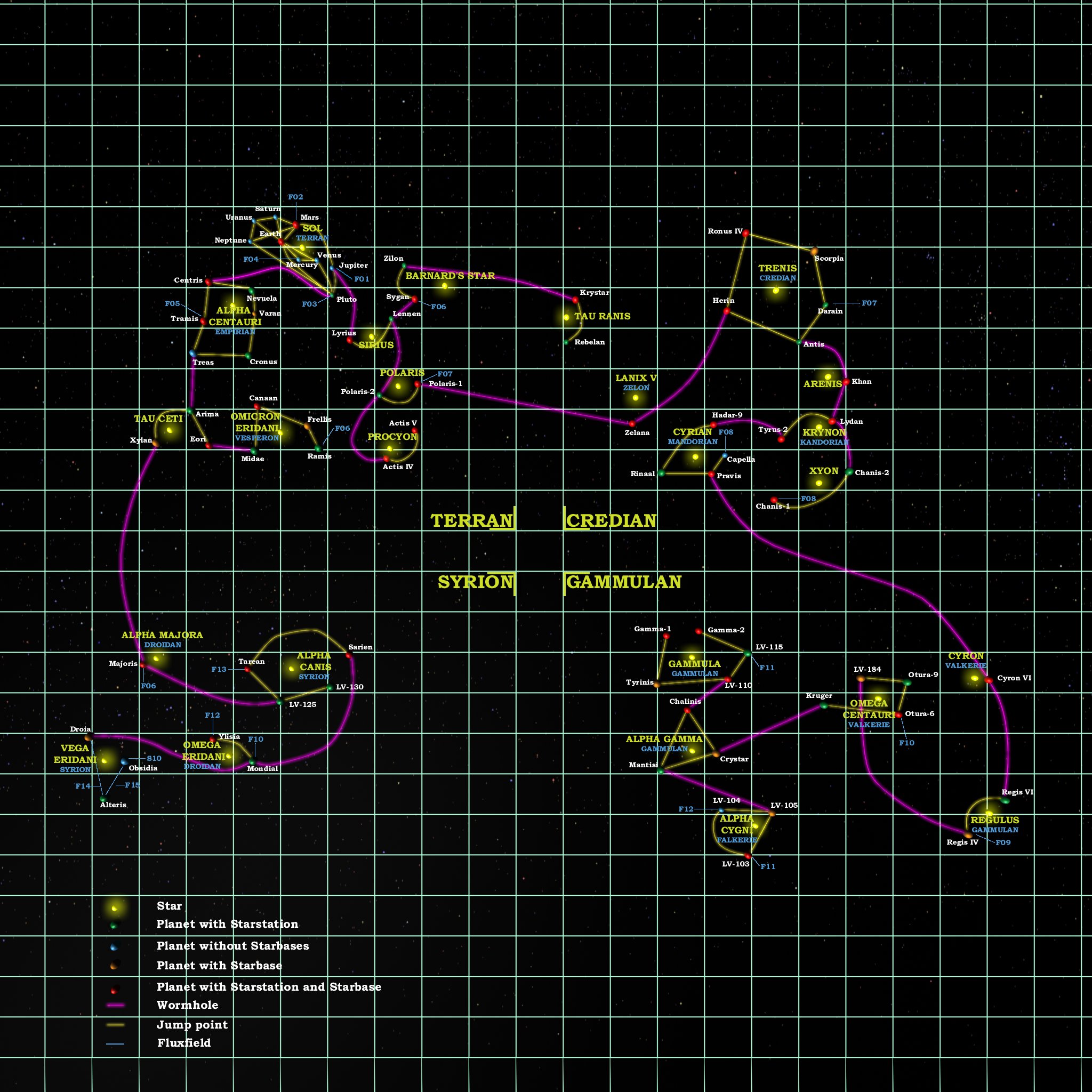
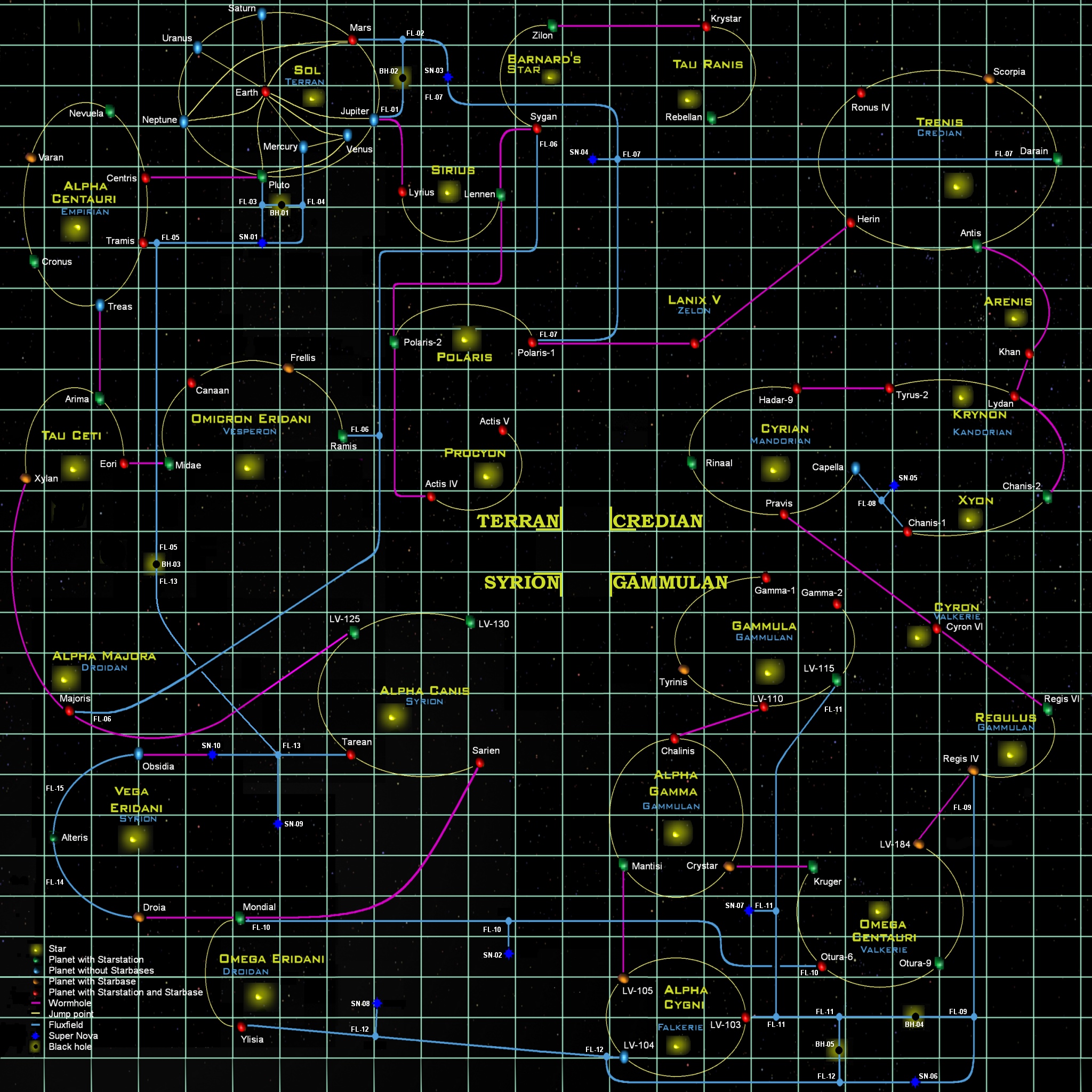
MAPS
http://www.3000ad.com/downloads/world/GAME_GALAXY_MAP.JPG
http://www.3000ad.com/downloads/world/GAME_GALAXY_MAP_LINKS.JPG
http://www.3000ad.com/downloads/world/GAME_GALAXY_MAP_STD.JPG
[UCCE 2.0 - 3.0] Saved Games Explained
This does NOT save the game in a manner that allows it to be restored.
It does a real-time game save of the current game state. It's not saved to disk. It is like a check-point; except that it stays in memory.
It is used for when you are about to do something hairy (or utterly stupid) without compromising a pre-existing saved game or the current game state.
If you want to save this state to disk, you MUST already have a pre-existing game (saved using the method below) for this option to work. If not, RESUME will NOT work and you will be presented with the full save game screen if you try to use that without having a pre-existing saved game.
FULL GAME SAVE (ALT+G)
This does a FULL game save. It allows you to use RESUME as well as RESTORE. It also allows you to have up to 10 saved games per character profile.
SAVED GAME FILE SETS
All the saved game files are in a "set" stored in a .SG? file (e,g. PLAYER0.SG0). The first number (0-9) is the profile slot, and the last number (0-9) is the saved game slot. Depending on profile and saved games slow, the file names look like: PLAYER.LOG, PLAYER.SAV, PLAYER0.SG0, PLAYER0.SGD
HOW IT WORKS
TEST #1 (QUICK SAVE)
- Delete (or save them somewhere) all games in the .\save folder
- Start the game, select ROAM or ACM, enter your name and craft name, launch
- Select COMMAND/SYSTEMS -> QUICK GAME SAVE
- Quit to main menu
- At the main menu, press RESUME.
- You will be taken to the start new game screen because NO previous saved game profile exists.
- Quit the game and look in the .\SAVE folder, and you won't see any files there. Which is why there was nothing to resume or restore.
TEST #2 (FULL SAVE)
- Delete (or save them somewhere) all games in the .\save folder
- Start the game, select ROAM or ACM, enter your name and craft name, launch
- Select COMMAND/SYSTEMS -> FULL GAME SAVE
- Select a saved game slot, enter a name etc
- Press ALT+Q to quit the game entirely to the OS
- Look in the .\SAVE folder and you will see a set of 4 files that make up a saved game set depending on the chosen saved game slot (0 - 9).
- Start the game, select RESTORE
- After the files are loaded/restored, you will be taken back into the game where you left off
- Do something or wait a few mins so some changes are written to the game memory
- Select COMMAND/SYSTEMS -> QUICK SAVE GAME
- Quit to main menu
- At the main menu, select RESUME and you will be at that same spot
- Press ALT+Q to quit the game entirely to the OS
- Restart the game and you will find that RESUME or RESTORE will both work and take you to two DIFFERENT parts of the game as per the saves.
DISTRIBUTING SAVED GAMES:
You only need the .SGD file (e.g. PLAYER0.SGD)
If you are distributing saved games and only have the .SG? file (e.g. PLAYER0.SG0) in a profile set, you will NOT be able to load it because that's not the file that is used to display profiles in the RESTORE screen. You have to rename the file.
e.g. PLAYER0.SG0 will NOT be displayed, and thus can't be loaded. It has to be renamed to PLAYER0.SGD for it to be displayed and thus loaded via the RESTORE screen.
[UCCE 2.0] Final 2.00.03 Patch
The 2.00.03 patch (download link) is the final patch for the 2009 UCCE 2.0 game. It will install over any previous UCCE 2.0 version regardless of where it was purchased.
It advised that you apply it to a new install of the 2.0 version (2009) of the game.
No further patches will be released for this 2009 legacy product. So, consider this as a gift for your support. 🙂
All future updates are only for The Lyrius Conflict DLC which only works with the Steam version of UCCE 2.0.
If you have the paid version of the 2009 UCCE 2.0 game, you don't need to buy The Lyrius Conflict if you only want this final 2.00.03 patch.
PATCH 2.00.03
This patch does the following to a new or pre-existing UCCE 2.00.XX install
- applies the 2.00.03 patch
- adds the new content from the v2.0 Steam (2015)
NOTE: If you installed the full game in your Steam folder so you could run it from Steam, then the patch should work I think. I can't guarantee it though; so you're on your own. You just need to point the patch to the install folder when prompted.
Universal Combat CE Editions
There are FOUR editions of Universal Combat CE.
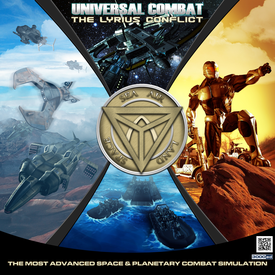
UCCE 3.0 - THE LYRIUS CONFLICT
This DLC add-on (changelog) improves on the base UCCE 2.0 (2015 Steam Release)
When you install the game, if you have the The Lyrius Conflict DLC (3.0), it will be automatically installed. To uninstall it, you have to do it manually from the Steam library interface for the game.
The installer will create the desktop shortcuts automatically. If not, see the section below.
UCCE20_steam_shortcuts.exe // shortcut & docs installer for v2.0x
UCCE30_steam_shortcuts.exe // shortcut & docs installer for v3.0x
UCCE 2.0 (STEAM 2015 RELEASE)
UCCE 2.0 (2015) // Supported via DLC above. v2.00.04 | 10-11-2017 is final patch (changelog) for this base version without the DLC
NOTE:
The 2015 edition was free to play (not free to own) for a limited time only. So if you got it during that period, it will still be in your Steam library and enabled. If you got it during that period, then tried to play it and are asked to pay $9.99, that means you got it during the other promotion in which it was free for a period of time only. That being the case, you would have to buy it. Being in your Steam library doesn't mean you can play it. That's not how Steam works.
If you try to play it, and you are able to, then you already own it. You only need to buy the DLC if you want future updates.
If you try to play it, and you are unable to, then you don't own it. You would need to buy UCCE 2.0 and/or the DLC. There's a Steam discount bundle if you buy both.
UCCE 2.0 (2009)
UCCE 2.0 (2009) // No longer supported. v2.00.03 | 05-28-2015 is final patch (changelog)
UCCE (2007)
UCCE (2007) // No longer supported. v1.01.04 | 02-23-2009 is final patch (changelog)
MULTIPLAYER
The last title to support multiplayer was the 2007 release of UCCE. The master server has since gone off-line, so the server browser will no longer work. You can still connect via commandline IP address. Refer to the docs for more info.
There are currently NO plans to add multiplayer to any future versions.
Commandline Parameters
These are not documented because they are NOT supported for public use. But feel free to use them at your own risk:
These can be added to the Windows shortcut or in the Steam client game properties window.
/i : invincibility cheat
/n : disable the startup company logo animation
/w : run in a window. ALT+TAB will usually work as long as window is not covered by another window. With a large monitor, you could run the game in a 1280x720 window and a PDF viewer (for the docs) in another window (which should NOT cover the game window)
/x : run the software audio mixer instead of hardware. can help with somelaptop audio systems and similar ones with buggy 3D audio drivers
[UCCE 3.0] Game Startup Issues
The 3.0x build of the game is the kernel for The Lyrius Conflict DLC which is currently on Steam.
This DLC requires the base v2.00.03 of the game.
If you are having startup issues, try one or more of the following:
- Locate and delete the game's UCCONFIG.INI file located in the game install folder e.g. C:\Program Files (x86)\Steam\steamapps\common\Universal Combat CE\When you start the game, a new one with default values will be created.
Disable the game's intro sequence. Sometimes this can cause playback issues due to missing codecs on some machines.
- Right-click on the game in Steam client
- Go to GENERAL/SET LAUNCH OPTIONS
- Add /n then click OK
- Right-Click on the game and select Play Gameor The Lyrius Conflict depending on which you want to runCompletely uninstall and re-install the game and DLC
- Scroll to the game, then un-tick the DLC. Steam will uninstall it
- Right-Click on the game, and select UNINSTALLso Steam completely removes it
- Go to the Steam folder and if you see a Universal Combat game folder, delete it. e.g. C:\Program Files (x86)\Steam\steamapps\common\Universal Combat CE\
- Install the game as normal. Then try to run it.
- Install the DLC as normal. Then try to run it.
You should also ensure that you have the latest audio and video drivers installed. Also you may need the legacy DirectX 9 June 2010 Runtime - even if you are running Windows 10.